
Accounting Settings has controls for how StoreLIVE activity links to an accounting systems as well at some other accounting related settings.
Steps for accessing Accounting Settings.
-
Click Settings

-
Click Accounting Settings
Account Setup
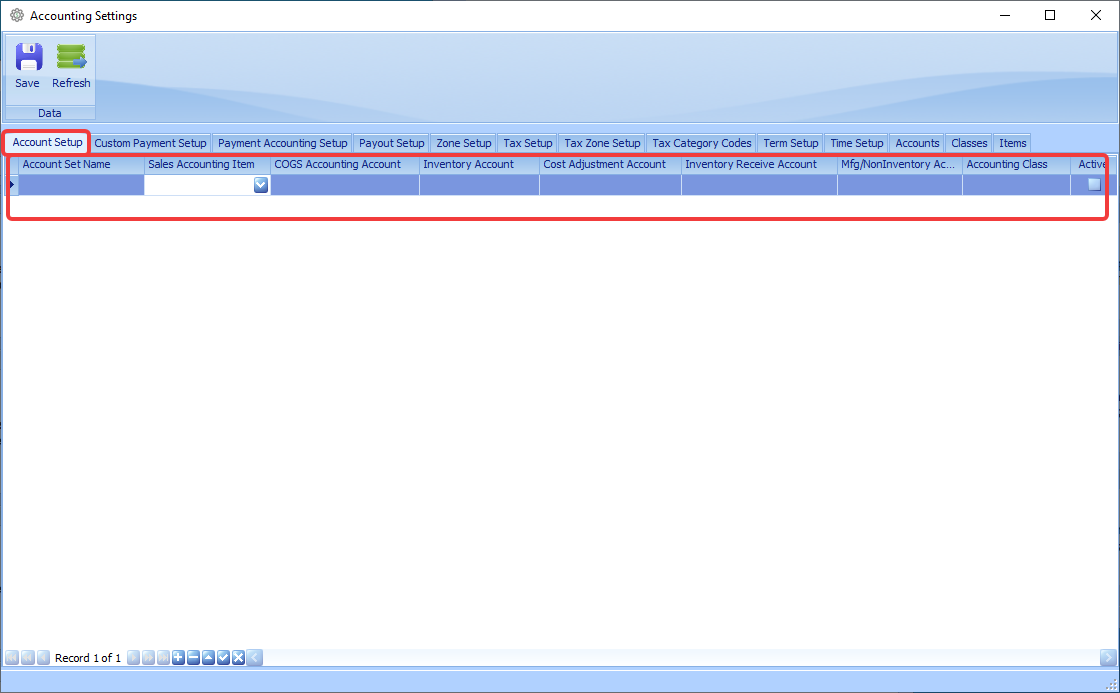
Account Setup creates account set templates for sending data to an integrated accounting system. Assign these account sets to departments or categories to specify how StoreLIVE! activity should be sent to the accounting system.
-
Account Set Name – A descriptive name for the account setup, used to identify different groups of account mappings.
-
Sales Accounting Item – Specifies the accounting item used for sales transactions associated with this account set.
-
COGS Accounting Account – Specifies the Cost of Goods Sold account used when merchandise is sold.
-
Inventory Account – Specifies the accounting account used to track the value of inventory.
-
Cost Adjustment Account – Specifies the account used when inventory costs are adjusted, such as when the recorded cost of an item changes after being received.
-
Inventory Receive Account – Specifies the account used for accounting entries created when inventory is received.
-
Mfg/NonInventory Account – Specifies the account used for non-inventory items used in manufacturing work orders that do not follow the normal inventory accounting process.
-
Accounting Class – Assigns an accounting class or department to transactions generated from this account set.
-
Active – Determines whether the account set is currently available for use. Clear this option to make the account set inactive without deleting it.
Custom Payment Setup
The Custom Payment Setup tab is used to define which payment types are available for payments and whether they can be used with invoices.
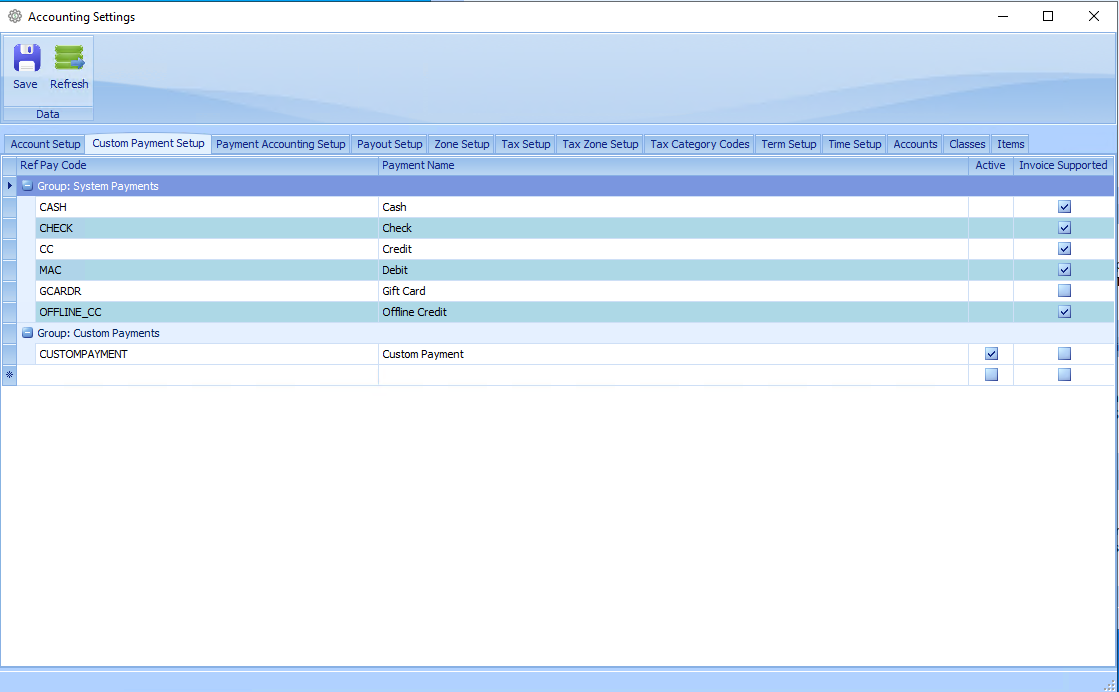
The Payments in the System Payments Group cannot be inactivated or have the names changed.
Custom Payments can be created in the Custom Payments group. Some use cases for this are paper gift certificates, local benefits programs, Wire/ACH Payments
-
Ref Pay Code – The internal reference code for the payment type. Examples shown include
CASH,CHECK,CC,MAC, andGCARDR. -
Payment Name – The customer-friendly or descriptive name of the payment type, such as ACH, Gift Certificates
-
Active – Determines whether the payment type is enabled for use. Custom payment types can be activated or deactivated here.
-
Invoice Supported – Determines whether the payment type can be used when processing invoice-related transactions.
Note: Custom Payments will need to be added to the Support Tender Types setting in POS Settings. If you want to customize the name on the Payment button use the Supported Tender Types Names setting in POS Settings.
Accounting Integration Note: If your system is integrated with your accounting system you will need to be sure to set the accounting item for any new custom payments.
Payment Accounting Setup
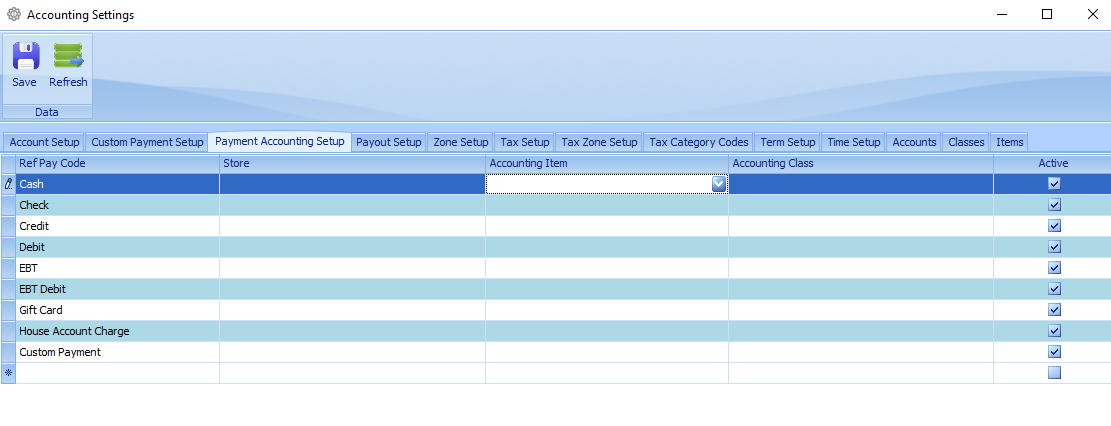
The Payment Accounting Setup screen is used to map each payment type in StoreLIVE to the accounting item in an integrated accounting system.
-
Select the payment type under Ref Pay Code.
-
Set the Store receiving the payment type.
-
Map it to the item in the accounting system with the Accounting Item drop down. You can set the Accounting Class as well.
Payout Setup
Payouts are disabled by default at Point of Sale. The Generally Accepted Accounting Principle would be to process vendor payments from the accounting system rather than the point of sale system. The point of sale system is designed for recording and tracking sales rather than vendor payments and other expenses. For that reason Payout setup is implemented upon request.
Zone Setup
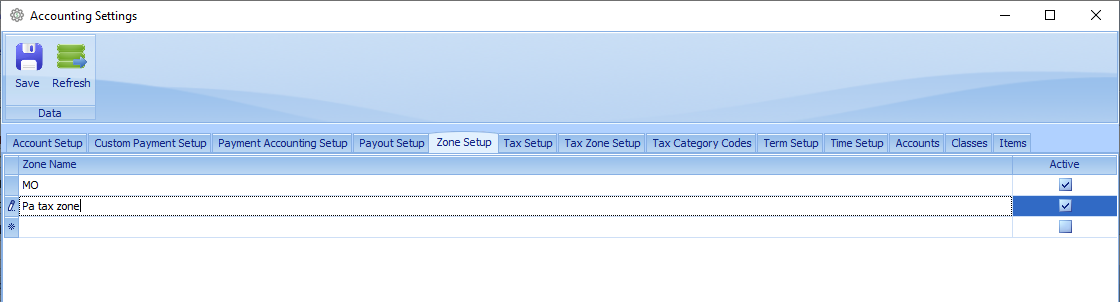
Tax zones are created to charge specific tax at specific stores. Create a zone by typing in the name of the zone. The zone is then applied to the store in Store Setup.
Tax Setup
Tax setup is were all the tax rates are created.
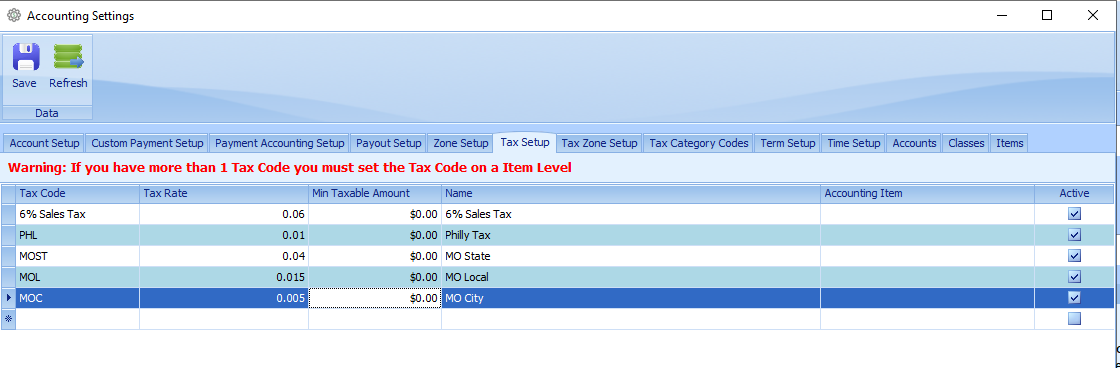
Tax Code: Select the state from the drop down or type the state abbreviation in the field.
Pennsylvania stores should use the PA tax code to apply Pennsylvania Sales Tax Tables.
Tax Rate: Enter the tax rate as a decimal percent (6%= 0.06)
Min Taxable Amount: Enter the minimum item amount that can be taxable.
Name: Enter the tax name. This name will show on the customer receipt for transaction with taxable items. Suggestion: Include the percentage being charged for the customer’s reference.
Accounting Item: If StoreLIVE integrates with your accounting system, select the accounting item under which to record this tax rate.
NOTE:
-
For single stores with a single tax rate, items only need the taxable box checked to charge tax.
-
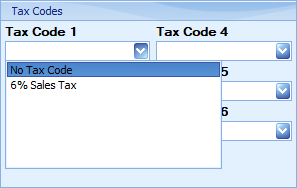
If the store has multiple tax rates, mark items as taxable and select the applicable tax code(s) for each item.
-
If multiple stores charge different sales tax rates, apply every tax code that can apply across those stores. The register applies only the tax code(s) for its store’s zone.
Tax Zone Setup
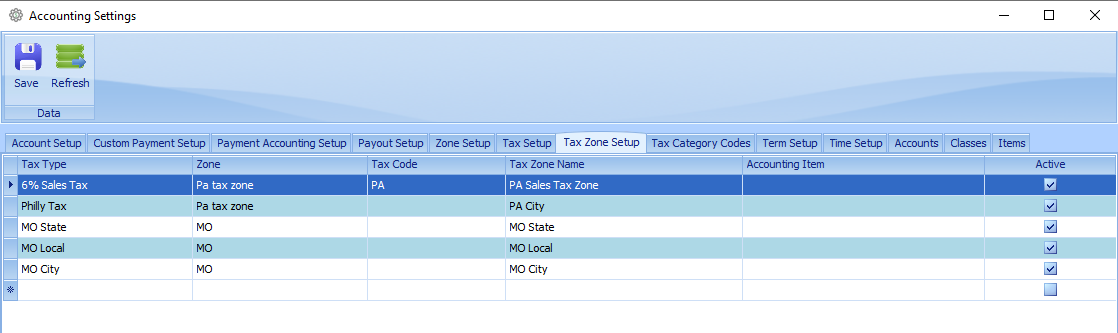
Tax Zones Setup is where you set the tax codes/rates to the zones they apply to.
-
Select the tax code under the tax type
-
Select the zone that the tax code should be a part of.
-
Tax Code: Select the state from the drop down or type the state abbreviation in the field.
Pennsylvania stores should use the PA tax code to apply Pennsylvania Sales Tax Tables.
-
Tax Zone Setup: Enter the tax sales zone name.
-
Accounting Item: If StoreLIVE integrates with your accounting system, select the accounting item under which to record this tax rate.
If you see Min Taxable Amount and Tax Rate column in Tax Zone Setup do not set them this should be set in Tax Setup.
Tax Category Codes
Tax categories are used when integrated with Avalara tax compliance services for calculating and charging out of state sales tax.
Terms Setup
Finance Charge
These setting can be set if printing statements from StoreLIVE and if StoreLIVE should calculate and charge finance charges.
Annual Interest Rate: Specifies the annual interest rate used to calculate finance charges on outstanding customer balances. This setting determines how much interest accrues in a year and is typically applied daily. The finance charge is calculated as (balance) × (rate) / 365 × (days past due). (This setting expects a percent with or without a percent sign. Example: 5% or 5. Default is NULL).
Minimum Finance Charge: Specifies the minimum amount to be charged when a finance charge is applied, regardless of the calculated amount. (Should be a numeric value. Default is 0).
Grace Period: Specifies the number of days after the due date during which no finance charges will be applied. Finance charges begin accruing once this grace period has passed. Note: This setting does not affect the date from which the finance charge calculation start. (This setting expects a number. Default is 0).
Assess Finance Charge on Past Due Finance Charge Invoices: Specifies whether existing finance charges that are overdue should be included in the balance when calculating the next finance charge amount.
Calculate Finance Charge From: Specifies whether the finance charge should be calculated based on the due date or the invoice date . If a finance charge has already been applied to the balance, the calculation will default to using the date of the most recent finance charge. (Default is Due Date)
Finance Charge Item: Specifies the sku or upc of the item that is used to add a Finance Charge to a Finance Charge Invoice when one is applied. (Default is "").
Default Terms: In the table on Term Setup a default term should be specified with a term name and term days. This is used to determine due dates on finance charge invoices.
Note: When StoreLIVE integrates with an accounting system, the system supplies the list of terms; create new terms there, not in StoreLIVE.
Time Setup
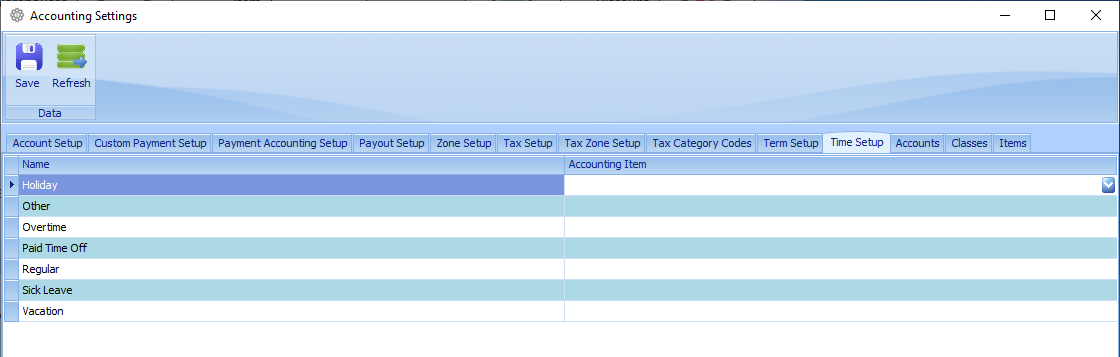
Time setup allow you to create different time types for the time clock feature.
The accounting item is no longer actively supported.
Accounts
This tab will show the list of accounting Accounts synced form the integrated accounting system.
Classes
This tab will show the list of accounting Classes synced form the integrated accounting system.
Items.
This tab will show the list of accounting Items synced form the integrated accounting system.