
The Register Balancing application allows cash and check amounts from a register cash drawer to be compared against the actual totals recorded in the system, and automatically calculates the shortage or overage amount if differences exist.
The application can be setup to calculate totals in “per register” mode, where the same cash drawer is used with the register for a given day, or in “per user” mode, where each cashier is assigned to a drawer.
(This setting can be changed on the Register settings screen under Settings. For more information on this setting see Register Settings )
Balancing a Cash Drawer
-
Click the Register Balancing icon on the StoreLIVE! Main Menu.
-
If you are asked to re-calculate totals select Yes.
-
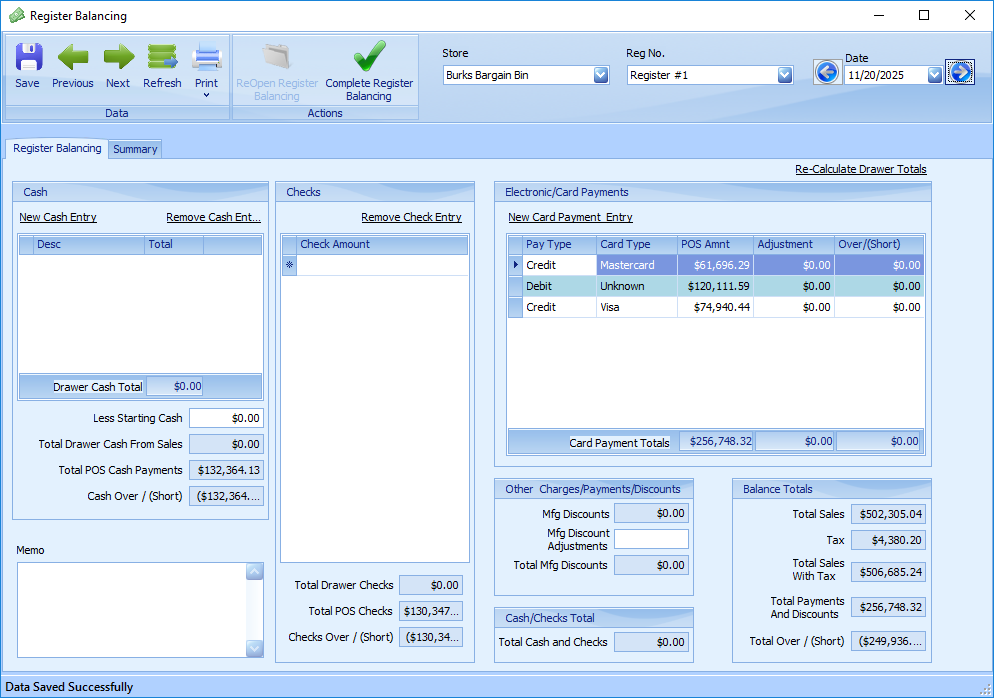
When the Register Balancing screen loads, select the Store and Date from the selections on the top right of the screen.

-
If the system is setup for “Per User” drawer balancing, select the User/Cashier from the User dropdown. If the system is setup for “Per Register” balancing, a Register dropdown will be available, and a register should be selected.
-
After making the appropriate selections, totals for the drawer will appear.
Recording Drawer Cash Amounts
At the end of the day/shift, or each time cash is collected from the drawer throughout the day/shift, a Cash entry should be recorded.
To Record a Cash entry:
-
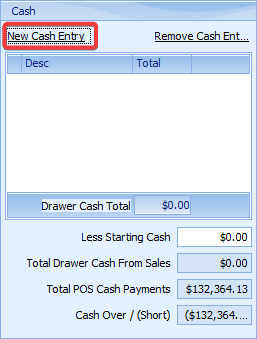
Click the “New Cash Entry” link.
-
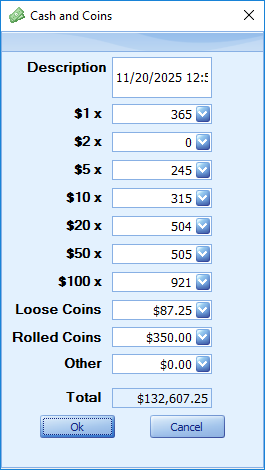
Count the actual number of cash bills and enter the total for each denomination. (For example, 22 $1s, 6 $5’s, 15 $20’s, etc.)
-
Count the coins, and enter the total in the Loose and/or rolled coins fields.
-
The Other field can be used to record any other amounts, or to record a total if the cash total was calculated with another method.
-
The Total field should match the sum of the cash.
-
Click OK to record this entry.
Verifying Cash Totals
-
After all cash entries are recorded, and sales are complete for the register/user, the cash totals can be verified.
-
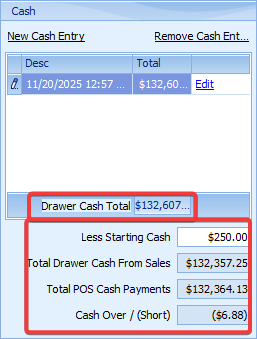
The Drawer Cash Total will show the total of all Cash Entries. This total should include starting cash.
-
The “Total POS Cash Payments” field shows the Cash total recorded on the Point of Sale system.
-
The “Cash Over/(Short)” field shows any differences between the actual cash in the drawer, and the total recorded on the Point of Sale.
Recording Drawer Checks
At the end of the day/shift, or each time checks are collected from the drawer throughout the day/shift, the check amounts should be recorded.
To Record a Check entry:
-
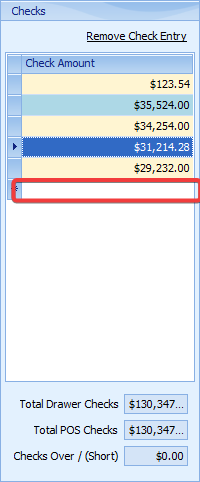
Enter the check amount in the Drawer Check Amounts column.
-
Repeat this entry for each individual check, or simply enter the total of all checks as one amount.
-
The Drawer Check Total should match the sum of all checks.
Verifying Check Totals
-
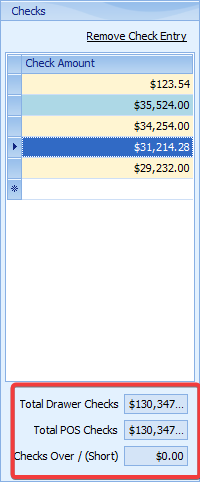
After all check entries are recorded, and sales are complete for the register/user, the check totals can be verified.
-
The Total POS Checks field shows the total of all Checks recorded on the POS system for the register or user.
-
The “Checks Over/(Short)” amount shows any differences between the POS Check total and the Drawer Check total.
Electronic/Card Payments
A summary of all electronic or card payments, such as credit, debit, gift cards and house charges, will appear in the Electronic/Card Payments section.
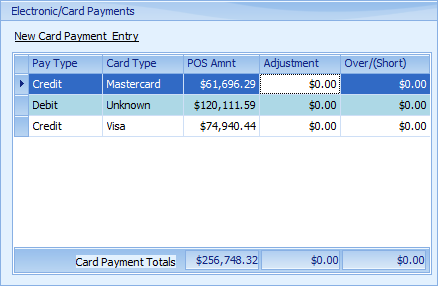
Generally, no data entry is necessary in this section. However, if the totals are incorrect, the “Adjustment” column can be changed to reflect any necessary adjustments. Changes may be necessary in situations where there was a system or communication malfunction, such as a credit card transaction that was processed successfully by the credit card processor, but not recorded on the point of sale system as a successful payment.
|
Note: The Actual amounts are calculated the first time the register balancing application is opened for the transaction date. When balancing the drawer, it may be necessary to click the “Recalculate …. Totals” link above the Electronic/Card Payments section, and when prompted to “Reset Electronic Payment Balance Amounts”, choose “Yes”. |
Manufacturer Discounts
Manufacturer discounts are totaled for the drawer and displayed in the “Other Charges/Payments/Discounts” section.
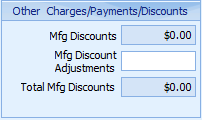
Similar to Card Payments, data entry is generally not necessary in this section, unless a problem must be corrected. If this amount should be adjusted, the adjustment amount can be entered in the Mfg.. Discount Adjustments field.
Drawer Totals
The overall drawer totals are displayed in the Balance Totals section.
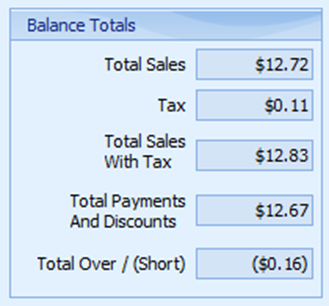
This section displays the Total Sales and Tax recorded for the drawer, the total payments (based on the check/cash entries and any other adjustments), and the Total Over/Short amount for the drawer.
The drawer balancing procedure should be completed for each register or user that appears in the register or user dropdown for the selected date.
Balancing Summary
When all cash drawers have been balanced for the selected date, the Summary tab can be clicked to view summary totals and verify batch totals.
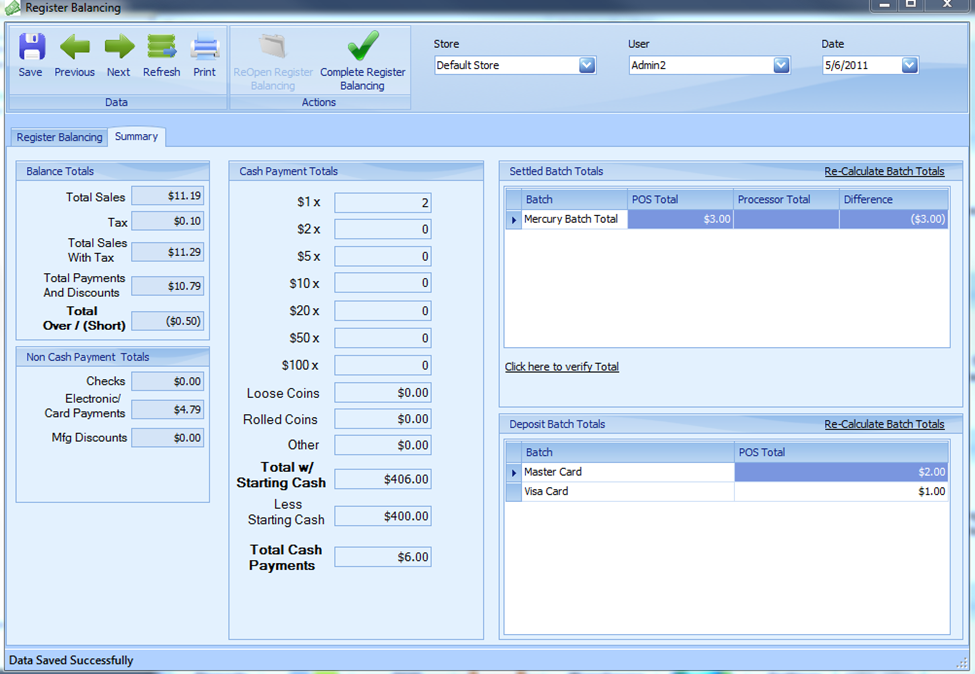
Settled Batch Totals
If using integrated credit card processing, an important part of the drawer balancing procedure is to verify the card totals from the point of sale system with the settled batch total from the card processor. The settled total from the card processor is generally obtained by accessing the card processors website.
A “batch” in Register Balancing is simply a summary of payment types, and should be setup to correspond to the method in which the credit card processor will settle or report daily batch totals. Batches are setup in the Register Settings section in the StoreLIVE! Settings.
When the batch total is retrieved from the credit card processor, it should be entered in the Processor Total column in the Settled Batch Totals section. The processor total should match the POS total. If it does not match, the discrepancy should be tracked down to specific transaction(s) using the StoreLIVE! payments report and transaction reports available from the credit card processor. When the discrepancy is found, the total for the affected drawer should be updated. The batch total should then be re-calculated, and the POS amount should then match the processor total. (Batch totals are re-calculated by clicking the “Re-calculate Batch Totals” link at the top right of the Batch Total section)
|
Note: It is very important to verify the batch total from the credit card processor matches the batch total displayed in Register Balancing. Verifying this total ensures that you are receiving the funds from the credit card processor that you processed via the point of sale. If totals are not verified, and discrepancies arise, funds could be lost if the issue is not resolved in a timely matter. |
Deposit Batches
Deposit batches can be setup to auto-calculate amounts that will be electronically deposited into your business bank account. Many times credit card processors will split a single batch into multiple deposits, such as one deposit for Debit transactions and another deposit for Credit transactions. The Deposit Batches section lists these amounts. When using accounting integration, these deposits will be imported into your bank account register. Deposit Batches are configured in the Register Settings section in the StoreLIVE! Settings.
Completing Drawer Balancing
When all drawers have been balanced for a date, and all settlement batches have been verified, register balancing should be marked as complete for the selected data. This is done by click the “Complete Register Balancing” toolbar icon. After the date is marked as complete, entries may no longer be edited. Additionally, if accounting integration is enabled, this will produce a daily sales summary which can be imported into the accounting system.
A summary balancing report is available and may be printed by clicking the Print toolbar icon.