
Inventory Counting
Periodic or cycle inventory counts are a necessary part of maintaining inventory accuracy. The StoreLIVE! Inventory Count application assists with this task. The Inventory Count application aids the user in counting items, as well as comparing counted totals to actual on-hand totals and performing any necessary inventory adjustments.
Performing an Inventory Count
-
Click the Inventory Menu button on the StoreLIVE! Manager Main Menu.
-
When the Inventory Menu appears, click the Inventory Count button.
-
When the Inventory Count Document Locator screen appears, click the “New Inventory Count” button to create a new count document. (or use the search features to locate an existing document if one has already been started)
-
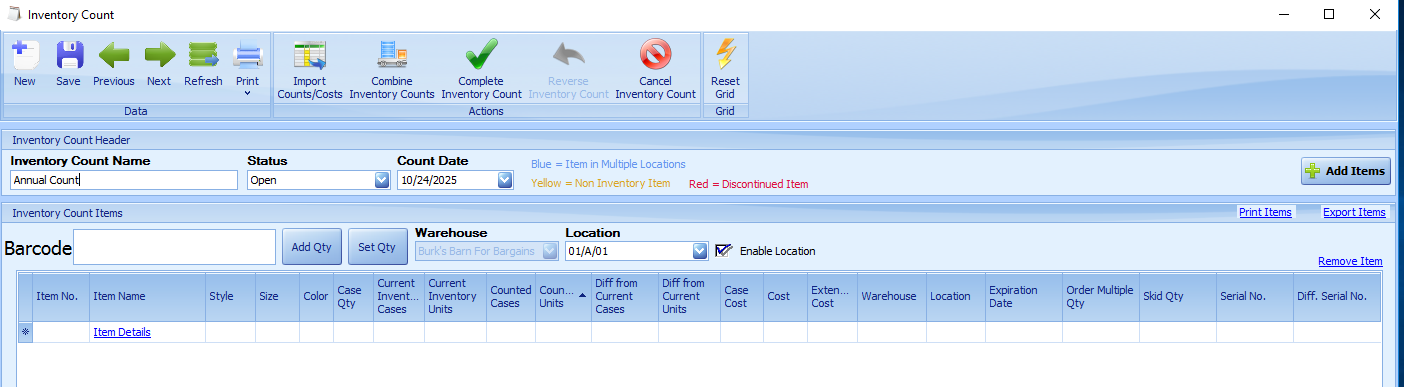
In the Inventory Count Name field, enter a description such as “Aisle One”.
-
The status and count date should default to Open and the current date.
-
Verify the warehouse dropdown is set to the warehouse location of the items you are counting. If using multiple locations within the warehouse, check the “defaults enabled” box, and select the specific location you are counting.
-
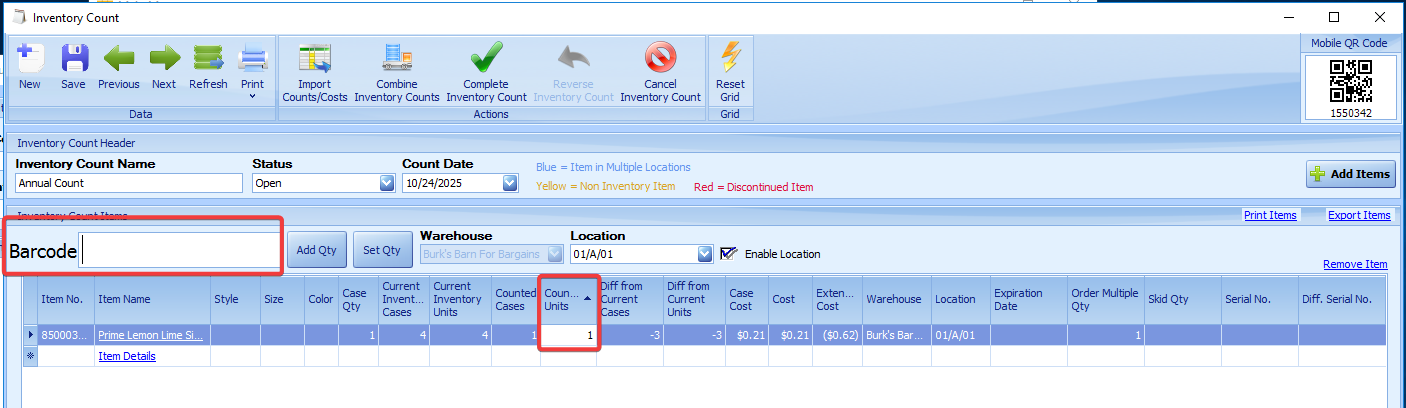
Enter or scan the Item number or UPC of the item you are counting into the Barcode field and press enter.
-
The item will be added to the Inventory Count document with a count quantity of one.
-
Pressing enter again will increment the quantity by 1. Alternately, you can click on the “Inventory Count” column and manually enter a quantity.
10. 'Add Qty' can be press to add (entered in the barcode field) a quantity to the line select
11. 'Set Qty' can be pressed then the quantity type in the barcode field will be used for the next item scanned.
12. The Current Inventory column displays the inventory quantity of the item at the given location when the item is first entered/scanned and the initial count quantity is recorded. This is the inventory quantity that will be compared against the counted quantity, and becomes the basis for any adjustments.
13. The Count Diff column displays the difference between the current inventory quantity, and the counted inventory quantity. If the inventory count is correct, this count difference should be 0.
-
When multiple people or areas are being counted at the same time separate counts should be created then combined before completing. This ensures that the count for items in multiple places are totaled before the counts are completed.
-
When counting is completed, differences should be reviewed for any item with a count difference greater than 0, the value in the cost field should be verified as accurate, as this is the cost that will be used for the inventory adjustment.
-
After all item counts have been verified, click the “Complete Inventory Count” button on the toolbar. This will adjust inventory based on the count difference.
|
Note: For accounting purposes, inventory adjustments that are performed by the Inventory Count program always post the adjustments to Cost of Goods Sold. |
StoreLIVE! Mobile App supports inventory count. Counts can be selected from a drop down or by scanning the QR code on the inventory count.