
Finding Transactions using the POS Journal
Completed transactions can be located and viewed using the POS Journal in StoreLIVE! Manager.
Transactions can be located by entering one or more search criteria in the POS Journal Locator screen.
When the Department, Category, or Item No. fields are specified, the search will display transactions that include items which match the specified criteria.
Voided transactions will not be displayed unless “Include Voided Transactions” is checked.
The Data Source dropdown allows you to choose which database to search:
· Current DB – Includes current completed/voided transactions
· Suspend Sales – Includes transactions that have been suspended
· Other sources may include archived sales from previous years
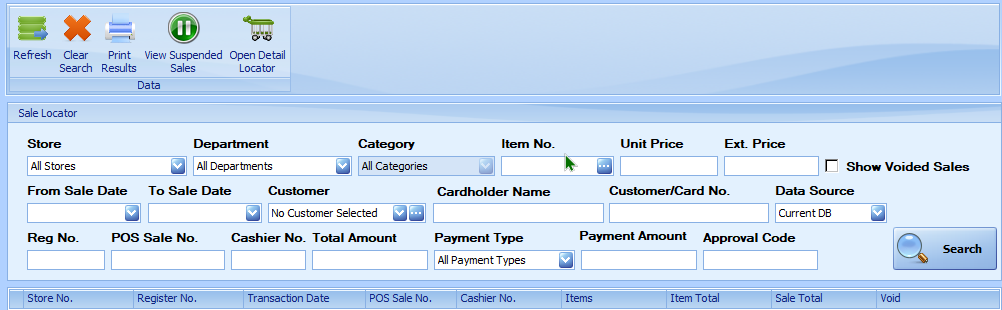
The current date will fill in automatically. This can be changed or cleared with the “Clear Search” button. Clicking the Search button will display any matching sales. To view the transaction details, double-click a transaction to display the POS Journal screen.
Viewing Transaction Details using the POS Journal
The POS Journal displays the transaction sale and payment details. The transaction can be printed by clicking the Print icon in the toolbar.
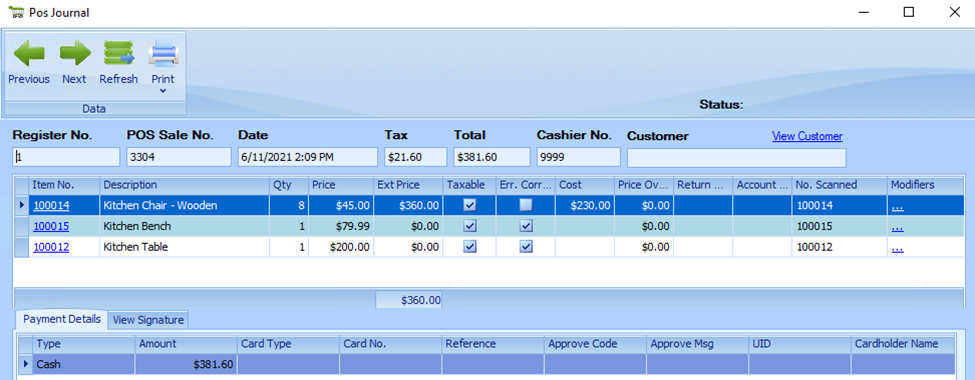
The sale details columns are defined as follows:
Item No. – The primary Item Number of the sold item
Description – The description or name of the item
Qty – Quantity Sold
Price – Unit price of the item
Ext. Price – Extended price of the item; the actual price of the item(s) sold
Taxable – Indicates if the item was taxable
Err. Correct – This will be checked if the item was removed from the transaction during the sale.
Cost – The cost of that particular item for the transaction
Price Override – Shows the original price of the item if it was changed on the transaction. Note: In the rare case the price was changed twice, this will show the second to last price.
Return No. – If an item was a return, and is linked to another sale, clicking in this field will display the original transaction.
Account No. – For sold items that have account numbers, such as maybe a gift card, this will display the account number.
No. Scanned – The number that was keyed or scanned to add the item to the sale. (This may be different than the Item No. if multiple Item Numbers/UPCs are associated with the item.)
The Payment Details fields at the bottom of the screen are defined as follows:
Type – Type of payment (Cash, Credit, Debit, etc.)
Amount – The payment amount
Card Type – If payment is associated with a payment card, you can view the list of card types. (This is only available with certain payment devices.)
Card No. – Truncated credit card number
Reference – Internal payment reference number
Approve Code – Approval code received from credit card processor
Approve Msg. – Approval message received from credit card processor
UID – Internal payment reference number
Cardholder Name - If payment is associated with a payment card, you will see a list with the card holder’s name. This should match the information printed on the card. (This is only available with certain payment devices and card types.)
View Signature
If an electronic signature capture device is utilized with the POS system, captured signatures can be viewed by clicking the View Signature tab.