
Accounting batches is a screen in Settings that lets the user review batches StoreLIVE created from program activity to send to the integrated accounting system (e.g., QuickBooks Online or QuickBooks Desktop)
Steps for accessing Accounting Batches.
-
Click Settings
-
Click Accounting Batches
Search for Batches
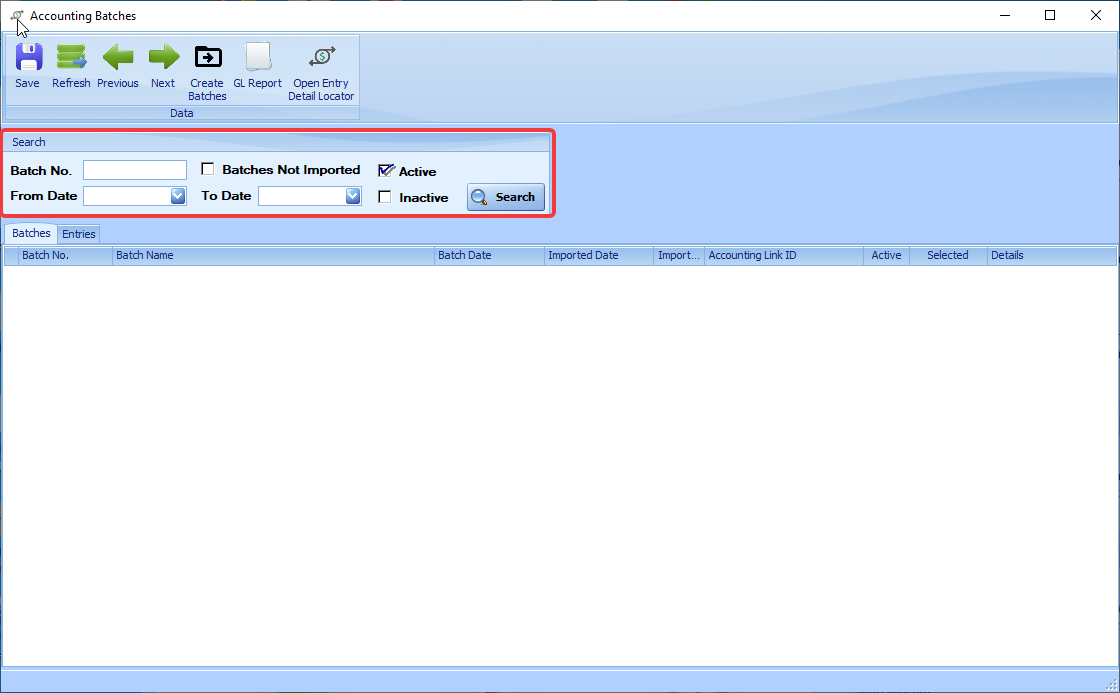
The options in the search box allow you to filter the batches shown in the box below.
-
Batch No. allows you search for a specific batch.
-
Checking the Batches Not Imported box will show batches that have not yet been sent to the accounting system.
-
Checking the Active box will show batches that are marked as Active. All batches will be active unless manually marked as inactive.
-
Checking the Inactive box will show batches that are marked as Inactive.
-
Use the From & To Date fields to show batches for a specific date range.
Batch Information
-
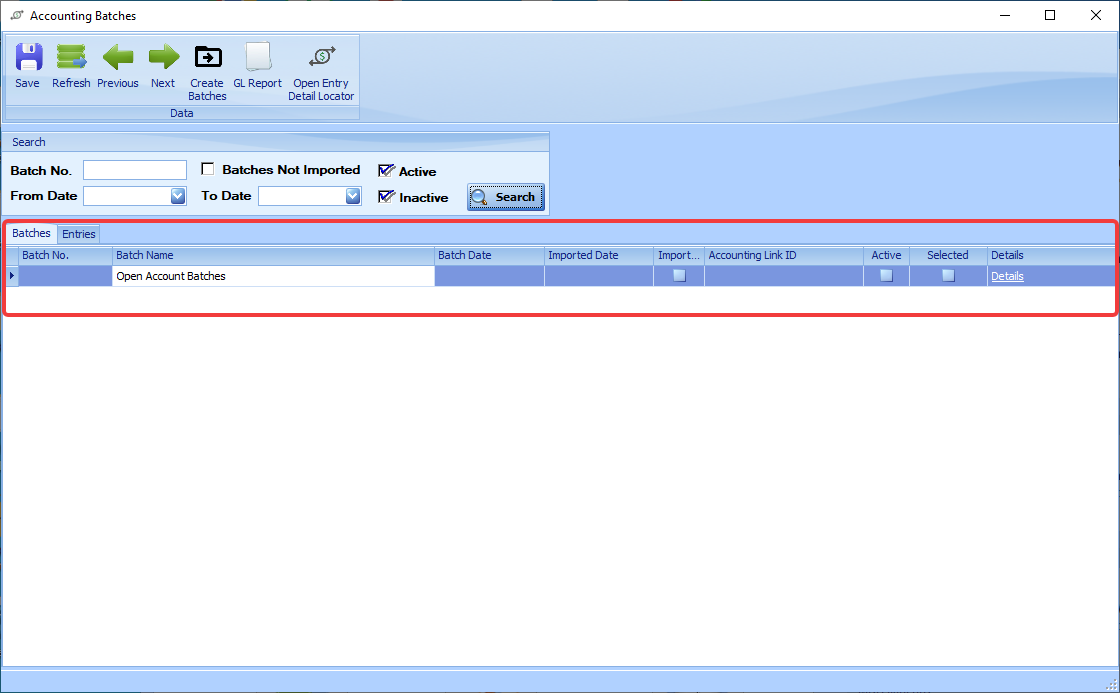
Batch No. is the ID number of the batch
-
Batch Name will give a brief description of the type of batch
-
Batch Date will show the date StoreLIVE Created the batch
-
Import Date will show the date that the batch has been imported into the accounting system.
-
The Imported box will be checked if the batch has been imported into the accounting system.
-
This box can be check if the entry has been already created manually in the accounting system. If the box is checked StoreLIVE will not attempt to import the batch.
-
NOTE: Unchecking this on a batch that has already been sent to the accounting system will cause it to be sent again and could create a duplicate transaction in the accounting system.
-
-
The Accounting Link ID will show the ID number the accounting system has assigned the batch after importing it into the accounting system.
-
The Active box will show if the batch is active and can be uncheck if you do not want the batch to be sent to the accounting system.
Accounting Batch Details
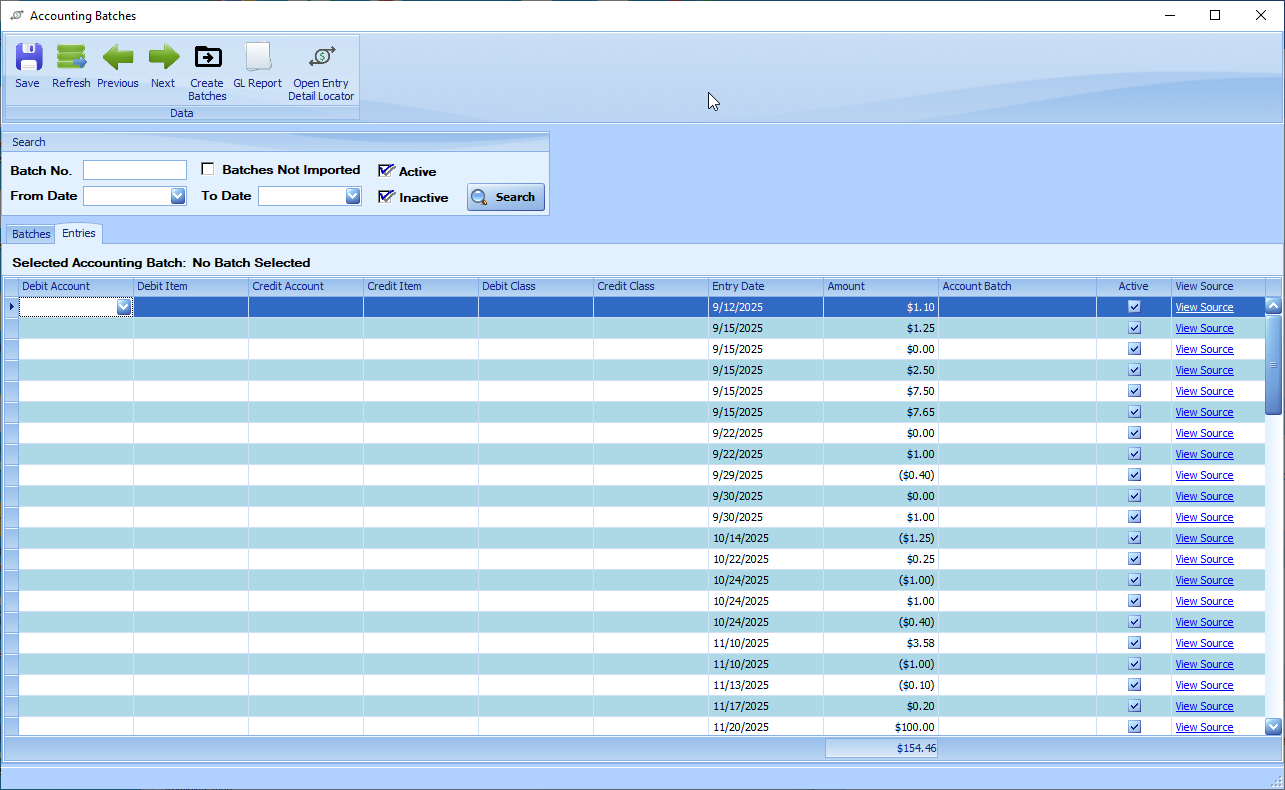
Clicking the Details button will take you to the details of the accounting batch.
-
Debit Account, Debit Item, Credit Account, Credit Item, Debit Class, and Credit Class with show the Accounts, Items or Class that will be affected in the accounting system when this batch is sent.
-
Entry Date shows the Date StoreLIVE created the entry
-
Amount shows the amount of the entry to the listed account, item and class
-
Account Batch shows the accounting batch this entry is a part of. This box can be unchecked to mark an entry to no be sent to the accounting system.
-
Active shows if this entry is active and sent to the accounting system.
-
View Source will show the activity that is creating this entry. (e.i. Register Balancing, Inventory adjustment, Receiving, House Charge/Payment)
Ribbon Options
-
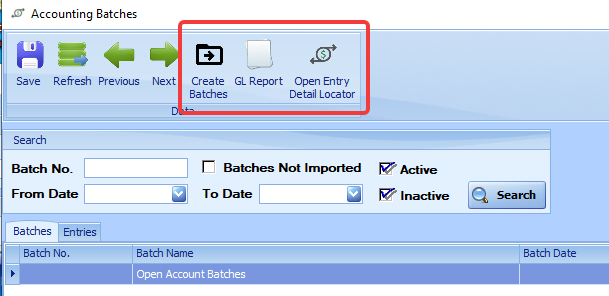
Create Batches groups individual accounting entries into their appropriate batches. This happens automatically when syncing with the accounting system; click it only when you need to view entries in batches before sending them to the accounting system.
-
GL Report will show a report of all the General Ledger entries made to the accounting system by StoreLIVE! The date range for this report is set by the From/To Date search filters.
-
Open Entry Detail Locator finds specific accounting entries. This helps locate the StoreLIVE activity that created an entry in the accounting system.
Open Entry Detail Locator
-
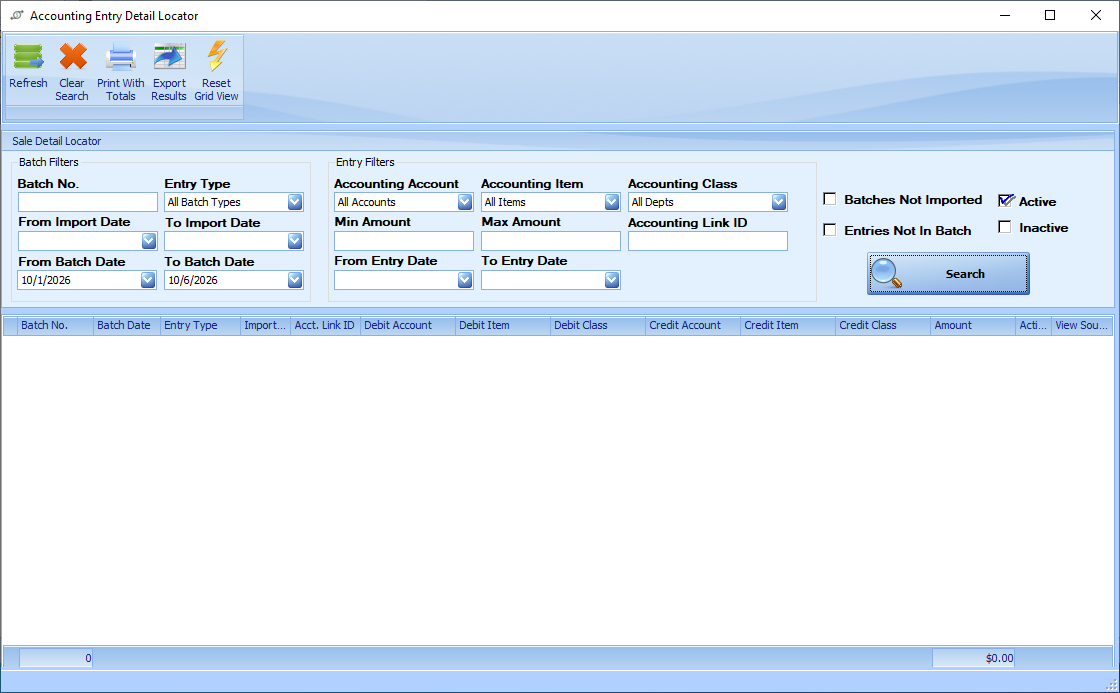
Batch No. – Enter a specific batch number to search for accounting entries associated with that batch.
-
Entry Type – Select the type of accounting batch to include in the search. (i.e. House Charge, Register Balance Summary, Receiving)
-
From/To Import Date – Limits the results to batches imported to the selected date range.
-
From/To Batch Date – Limits the results to batches with a batch date to the selected date range.
-
Accounting Account – Select a specific accounting account to include in the search.
-
Accounting Item – Select a specific accounting item to include in the search.
-
Accounting Class – Select a specific accounting class or department to include in the search.
-
Min Amount – Enter the minimum transaction amount to include in the results.
-
Max Amount – Enter the maximum transaction amount to include in the results.
-
Accounting Link ID – Enter a specific Accounting Link ID to locate entries associated with that ID.
-
From/To Entry Date – Limits the results to accounting entries dated to the selected date range.
-
Batches Not Imported – When selected, includes batches that have not yet been imported to the accounting system.
-
Entries Not In Batch – When selected, includes accounting entries that are not currently assigned to a batch.
-
Active – When selected, includes active accounting entries in the search results.
-
Inactive – When selected, includes inactive accounting entries in the search results.
Multiple filters can be used together to narrow the search results.
Print with totals: Prints a report of the results with totals of the amount columns
Export Results: Exports the search results as an Excel .xlsx file.