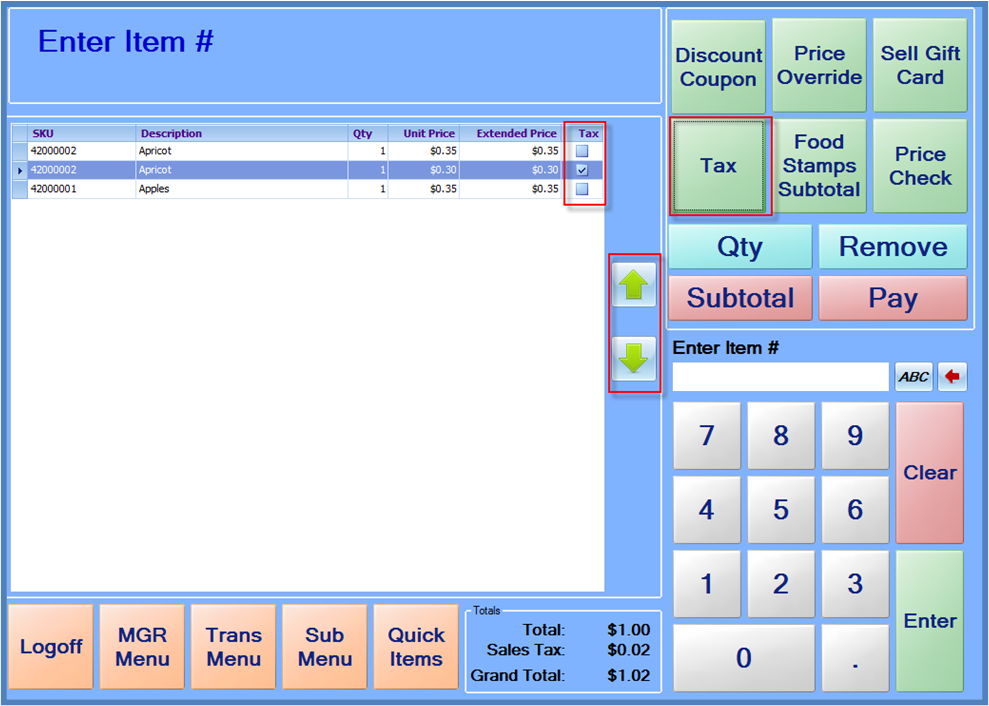
Sometimes is may be necessary to change the Taxable status of an item or remove tax from an entire transaction. Typical uses for this include purchases by non-profit businesses that have tax-exempt information on file with your store. The preferred method is to assign a tax exempt customer to a sale.
To change the taxable status for a single item:
-
Items must be added to the sale before the tax status can be changed.
-
Using either the arrow keys beside the item list or selecting on the touchscreen, highlight the item that should have its tax status changed. (The most recent item added to the sale is highlighted by default.)
-
Press the Tax button. The checkbox in the Tax column should check or un-check. Tax will be charged on checked items and no tax is charged on un-checked items.
To remove tax from an entire transaction
After all items have been added to a sale, tax can be removed from the entire transaction by pressing “Subtotal,” and then “Tax.” The Grand Total will update, and the sale can be completed as normal.