
Processing a Return with the original purchase receipt
To return an item when you have the original purchase receipt, scan the receipt or use the on-screen keypad to key in the number below the barcode on the receipt. The Return screen will display, and will list the items from the receipt.
You can select the item to return by either scanning/entering the item number, or by locating the item in the list and pressing it. When you scan/press the item, it is added to the sale with a negative quantity and the price that was on the original receipt. After scanning/pressing an item, the return screen will re-display, and you can either choose another item for a return, or you can press the red X or clear button to close the Return screen.
At this point, items could be added to the sale if the customer is returning and purchasing items, or the amount due the customer can be returned to the customer. If Subtotal is pressed, the original tender type is displayed on the screen. To return the funds to the customer, press the Pay button, enter the amount due to the customer (enter it as a positive amount), and then press the tender type button. (Cash, Credit, Debit, etc) The sale should complete, a receipt should print, and depending on the tender type, the cash drawer will open.
Processing a Return without a receipt
To return an item without a receipt, Return Mode must be used. To enable Return Mode, press the Trans Menu button, and then press Refund Return.

The system will then display the “Return Mode” caption in the upper right corner and prompt to Enter Item #.
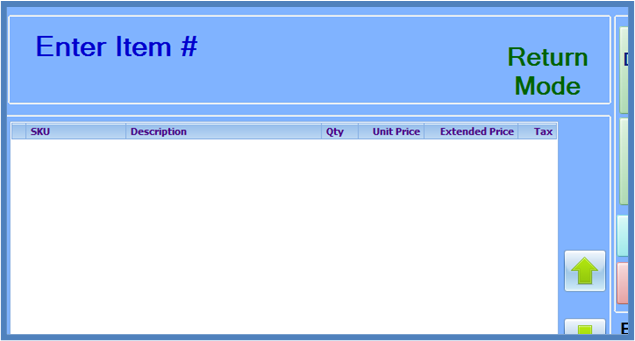
Scan or enter the Item Number of the item you want to refund or return. The system will then prompt you for a return price. The price will default to the current price of the item. Accept the default price by pressing enter, or enter a different price and press enter. After the item is added to the sale, additional items may be entered. Press the Clear button to exit from Return Mode and return to normal sales mode.
The transaction is completed using the same method described in the “Processing a Return with the original purchase receipt” section.
Notes on default permissions associated with returns/refunds
A user setup in the system with POS “Cashier” privileges is not able to perform any type of return.
A user setup with “Service Desk” permissions is allowed to process returns. However, if processing a return with a receipt, and the original tender type was not cash or debit, they may only return cash to the customer up to the amount specified by the Cash Return Limit setting in the StoreLIVE! Manager settings. As a general rule, if a customer paid cash or debit, cash can be returned to the customer. If the payment type was of some other type, then the amount should be returned to the customer in that form (such as processing a return to a credit/EBT or gift card).
A user setup with “Manager” permissions may return any type of payment when processing returns, regardless of the original payment type.