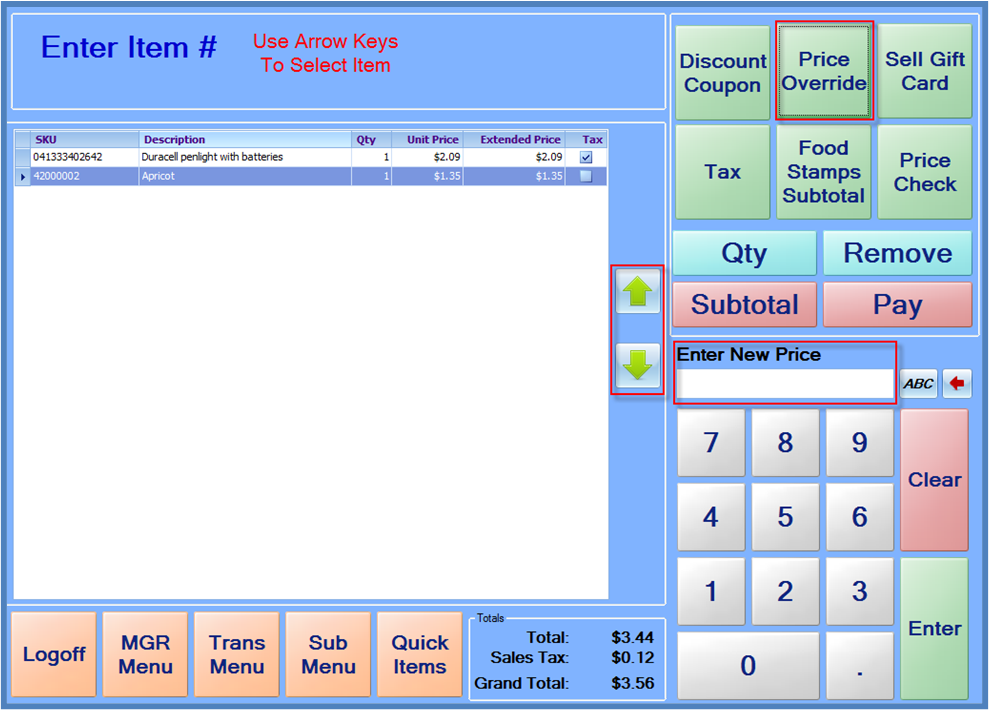
When an item is added to the sale, it is added with the price that is defined in the StoreLIVE! Manager database. If this price must be changed at the time of sale, it can be changed with a “Price Override.”
The procedure to change the price is to add the item to the sale, and then change the price. A price can be changed on any item on the sale. To do this, press the “Price Override” button, and then use the arrow keys beside the item list to highlight the item that should receive the new price (or simply select the correct item with the touchscreen). Enter the new price, and press Enter. Except in special cases involving Mix/Match prices, the price to enter is the individual unit price. The system will calculate the Total by multiplying the quantity by the unit price.