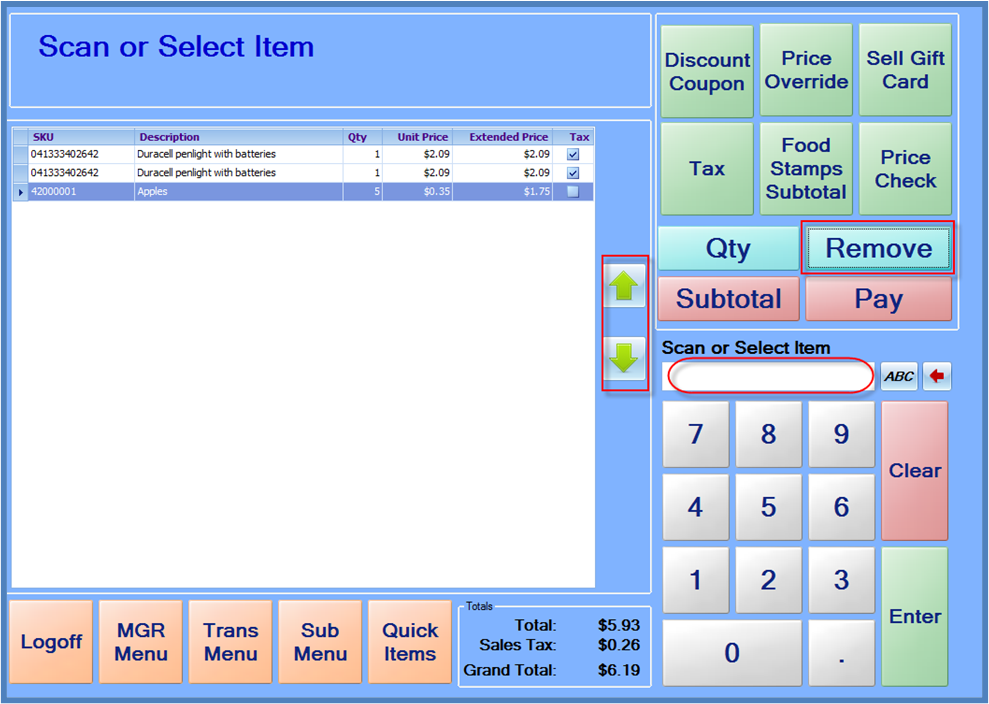
To remove an item from a sale after it has been scanned/entered, press the Remove button.
After pressing the Remove button, you will be prompted to scan or select the item you want to remove.
If you scan an item or manually key an item number and press enter, the first matching item will be removed. You can also manually select the item from the on-screen list by using the arrow buttons to highlight the item you wish to remove, and then press Enter when the correct item is highlighted.
The last item added to the sale is highlighted by default, so to remove the last item you added, you can simply press Remove, and then press Enter.
Remember: Pressing “Remove” itself will not remove the item; you must also select it and press “Enter.”