
Entering Cash payments was explained in the Basic Sale section of this document. In addition to cash payments, additional payment types such as check, credit, debit, and foods stamps/EBT may be accepted.
Recording a Check Payment
After all items have been added to the sale, press the Pay button. When the pay screen appears, key in the dollar amount of the check using the on-screen key pad, and press the Check button. The system will return to the Items Screen and prompt for a Customer ID. Key in the customer ID (typically the customer’s driver’s license number). If the Customer ID is accepted, the payment will be recorded. If the customer ID is not accepted, a check declined message will be displayed. Note that on check tenders, the cash drawer will not open. Checks should be slid into the slot on the front of the cash drawer.
Recording a Credit/Debit Payment (when transaction is processed on a standalone credit/debit device)
After all items have been added to the sale, press the Pay button. The Amount Due will be displayed on this screen. Select the Card Payment button. Process the appropriate amount on the external credit/debit machine (often done by the customer). Normally, the amount processed is the Amount Due, and the customer (or cashier) should follow the on-screen prompts to finish the transaction. If the Credit/Debit amount pays for the entire transaction, a receipt will print and the sale will be completed. If an additional amount is due, the system will return to the Sale screen, and the remaining Amount Due will be displayed
Note on Cash Back: If a customer requested cash back on a debit payment, enter the purchase amount, excluding the cash back amount, on the Pay screen and then press the Debit button. The system will prompt for the cash back amount. After pressing enter to accept the cash back amount, a Change Due amount to be displayed, and the cash drawer will open, allowing the cashier to give cash to the customer.
Recording a Food Stamps/EBT Food Payment (when transaction is processed on a standalone device)
Customers with FSA/EBT cards may pay for eligible items with these cards. To determine the amount eligible for this payment type, press the “Food Stamps Subtotal” button.
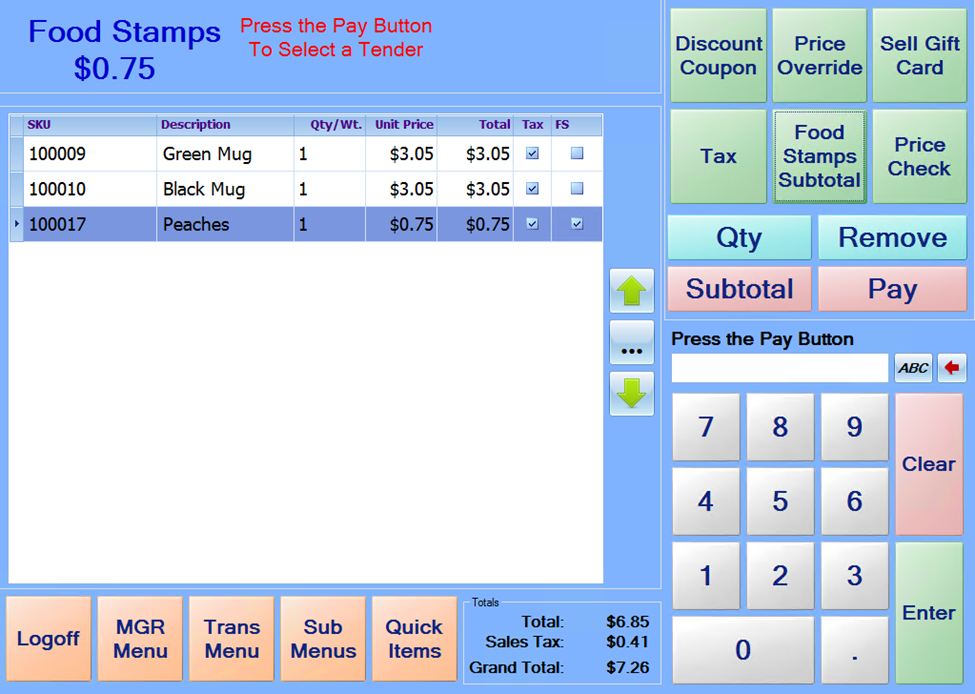
The amount eligible for Food Stamp payment will display on the upper left portion of the screen. After processing this amount on the food stamps or credit/debit machine, press the Pay button. Key in the amount processed that is listed on the receipt produced by machine, and press the Food Stamps button. If the Food Stamps amount pays for the entire transaction, a receipt will print and the sale will be completed. If an additional amount is due, the system will return to the Sale screen, and the remaining Amount Due will be displayed.
The Food Stamps subtotal amount is calculated without tax, and after entering a foods stamps payment, the system will remove tax from any taxable items that were eligible for the food stamps payment. The system will not allow an amount greater than the foods stamps subtotal to be entered as a foods stamps payment.