
To apply a store or manufacturer coupon to a sale, select the item you wish to discount and press the “Discount Coupon” button. After pressing this button, the Discounts Menu will be displayed.
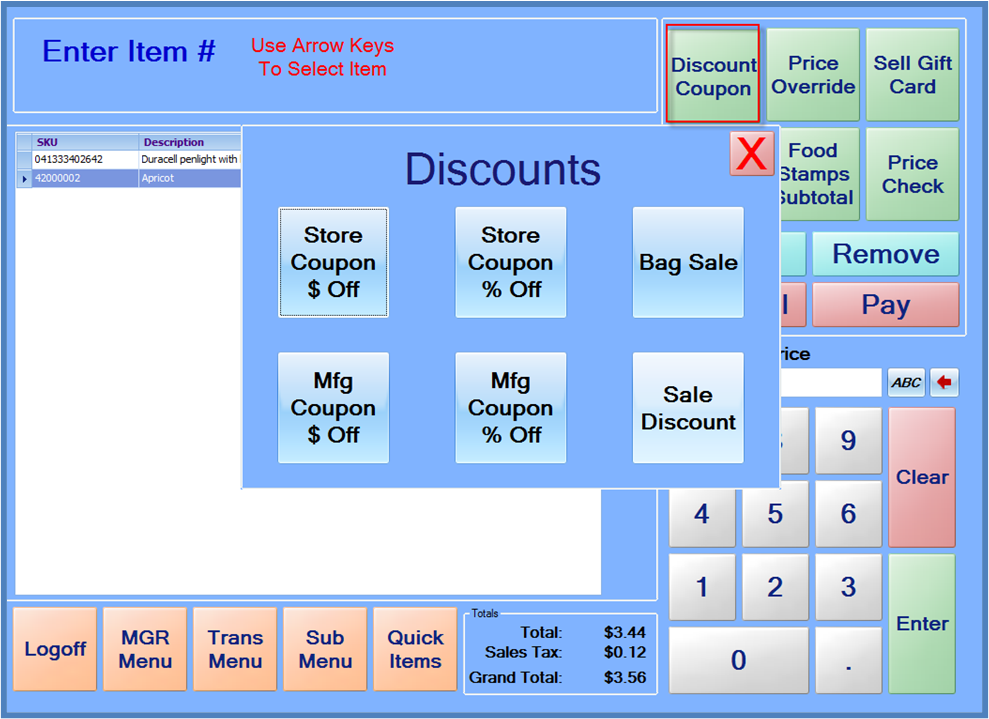
Assuming the coupon is a Store Coupon (or discount being given by your store), if the coupon is for a fixed amount, press the “Store Coupon $ Off” button; and if the coupon is for a percentage off an item, press the “Store Coupon % Off” button.
If the coupon is a manufacturer/vendor coupon, press the “Mfg Coupon $ Off” button if the coupon is for a fixed amount, or press the “Mfg Coupon % Off” button, if the coupon is for a percentage off an item.
After selecting the coupon type, key in the amount or percentage using the on-screen keypad, and press enter. A line item should appear on the transaction reflecting the discount amount.
Note: Items that are not marked as “POS Discountable” in the StoreLIVE! Manager database will not be eligible for item discounts, and no discount will be applied to these items.