
If a customer is set up with a store charge account, they may pay for purchases with a “house charge”. Each customer with a store charge account will be assigned one or more card numbers, and this number is required to process a charge to the customer account.
To process a house charge, press the “House Charge” button on the Pay screen. When the House Charge/Payment Entry screen appears, enter the customer card number and press Enter. If the number entered is a valid number, the customer’s name will appear on the top left portion of the screen. The middle right section of the screen will display the name on the customer card, the current account balance, and a status. If the current transaction amount can be processed without exceeding the customer’s credit limit, the Status will show Approved. Otherwise, the status will show Declined.
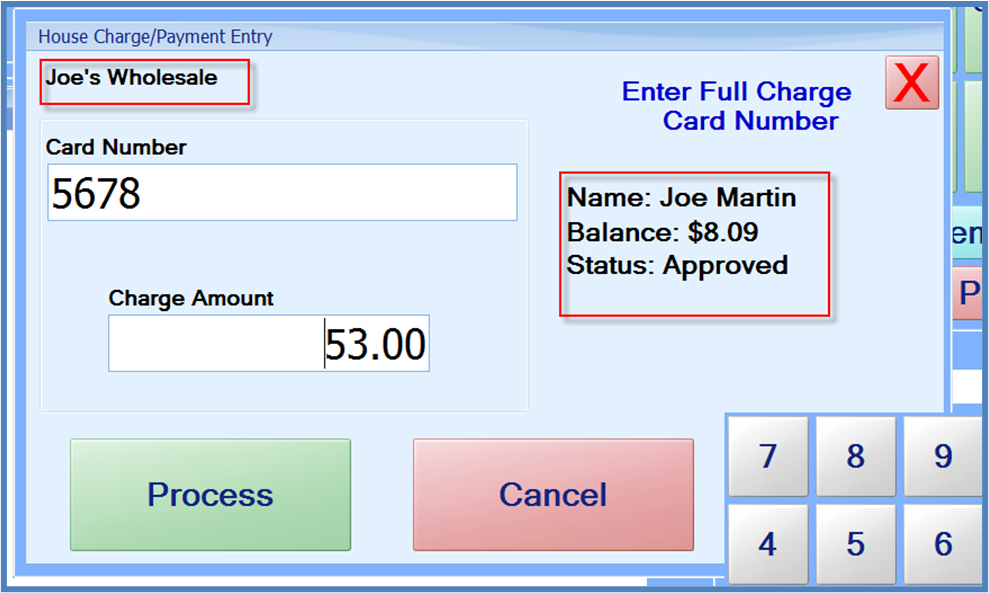
If a specific payment amount was not entered on the Pay screen, the Charge Amount will default to the transaction Amount Due. The charge amount can be changed if needed. When ready to process the charge, press the Process button. This will complete a final verification of the charge, and add a “House Charge” payment to the transaction.
Manager Note - If a customer has exceeded their credit limit, the charge will be declined. However, if a manager is logged on the register (either directly or via a “Manager Login”), pressing the “Process” button with a Declined status will cause the system to issue a warning, but will allow the manager to override the Decline and “force” the charge to the customer’s account.